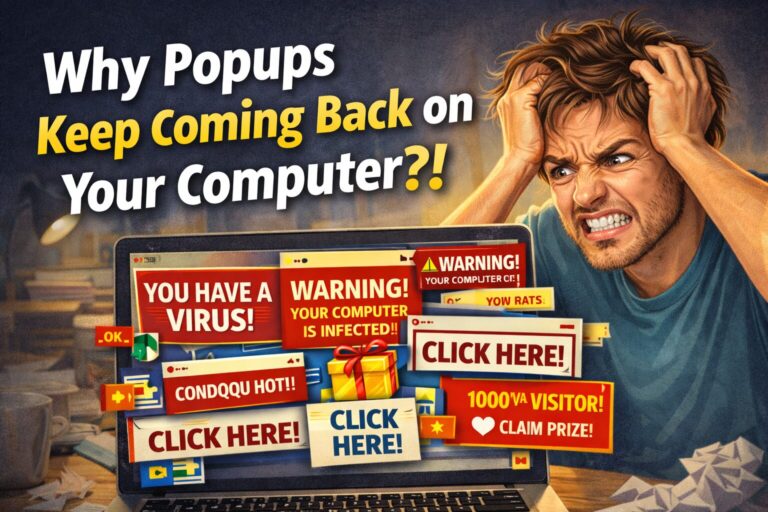
his was one of the most frustrating problems I saw on service calls.
“I keep closing them… but they come back.”
“I don’t know what I did.”
“It just started happening.”
Popups don’t just randomly appear.
👉 Something is causing them.
And until you fix the source…
👉 they will keep coming back.
If you’re dealing with popups that won’t go away, this will show you exactly what’s happening—and how to stop it for good.
👉 Start here if you want the bigger picture:
Device & Mobile Security Guide → https://securewithvpn.com/device-mobile-security/
Why Popups Keep Coming Back
Most people think:
👉 “It’s just ads”
But it’s usually more than that.
Popups come from:
- adware installed on your system
- browser notifications you allowed
- sketchy downloads
- hidden extensions
- unsafe websites
And once they’re in…
👉 they don’t leave on their own
The Most Common Causes (From Real Experience)
1. You Allowed Notifications (Without Realizing It)
This is HUGE.
A website pops up and says:
👉 “Allow notifications?”
Most people click “Allow” just to get past it.
Now that site can:
- send popups anytime
- push ads to your screen
- interrupt your browsing
Even when your browser is closed.
👉 This alone causes a lot of “mystery popups”
2. You Installed Something That Came Bundled
A lot of free downloads include extra junk.
You install one thing…
👉 but 3–4 hidden programs come with it
Now you get:
- ads
- popups
- redirects
- slow performance
3. Your Browser Has Been Hijacked
This is more common than people think.
Signs include:
- homepage changed
- search engine changed
- weird redirects
- toolbars you didn’t install
👉 That’s not random.
Something changed your browser settings.
4. No Protection Running in the Background
Without real protection, your system becomes easy to clutter.
Over time, it picks up:
- adware
- tracking scripts
- unwanted programs
You don’t notice it immediately…
But eventually:
👉 popups start taking over
What I Did on Service Calls
When I showed up to fix popup problems, I didn’t just “close the ads.”
That never works.
Here’s what actually fixed it:
Step 1: Remove Notification Permissions
This alone fixed a lot of cases.
- Go into browser settings
- Find notifications
- Remove anything you don’t recognize
Step 2: Uninstall Junk Programs
Check your installed programs.
If you don’t recognize it…
👉 remove it
Step 3: Clean the Browser
- Remove extensions
- Reset browser if needed
- Clear unwanted settings
Step 4: Run a Full System Scan
This was the big one.
Because many popup issues came from:
👉 things running quietly in the background
That’s why I always recommend having real protection running—not just something basic.
👉 This is what I personally recommend:
🔐 Bitdefender Total Security (Full Protection)
It blocks bad downloads, removes hidden junk, and helps stop popup problems before they start.
👨👩👧 If you have multiple devices in your home:
Why Popups Keep Coming Back
Here’s the truth most people don’t realize:
👉 They didn’t remove the source
They:
- close the popup
- restart the computer
- ignore it
But the cause is still there.
So the problem returns.
How to Stop Popups for Good
You don’t need to be technical.
Just follow this:
1. Don’t Click “Allow” on Random Sites
If you’re not 100% sure… don’t allow it
2. Avoid Free Downloads from Unknown Sources
That’s where most junk comes from
3. Keep Your Browser Clean
Less extensions = better performance
4. Use Real Protection
This prevents problems instead of chasing them later
👉 Related:
Why Your Computer Is So Slow →
Final Thought
Popups don’t just happen.
👉 They’re caused by something
Once you find and remove the source…
👉 they stop
👉 If you want a simple system to protect your computer and avoid problems like this in the future: